၁။ souce ထဲကို cydia.myrepospace.com/komin27 ကိုadd ပါ။
၂။သက္ဆိုင္ရာ IOS နဲ႕ဆိုင္တဲ့ Appsync tweak ကိုအရင္ထည့္ပါ
၃။ IOS7 အထက္ဆိုရင္ေတာ့ afc2add ကိုထည့္ေပးပါ။
၄။ ကြန္ျပဴတာကေန iFun Box သံုးျပီးထည့္ပါ။
Showing posts with label deb. Show all posts
Showing posts with label deb. Show all posts
Thursday, July 10, 2014

Friday, March 8, 2013
How to Backup Cydia Tweaks and Apps to .deb Packages on your Computer
Something bad happens to your iPhone, iPad or iPod touch and you’re forced to restore your firmware. You re-jailbreak,
restore your apps through iTunes but all your Cydia tweaks are gone and
you now start searching for them one after the other, installing them
from Cydia and even forgetting to install some important ones. The worst
scenario is when you forget the name of that tweak you had before
restoring your iDevice. If only Cydia tweaks could be synchronized with
iTunes… but we both know this is not possible for now. However I came
across a Cydia application that does this perfectly and it works quite
great. All my installed Cydia tweaks and applications were backed up and
copied to my computer.
To do this, you need a Cydia application called BackToDeb and also iFunbox.
Download BackToDeb (Cydia package)
Download iFunbox (Windows & Mac)
- Extract .deb file in the zip file your downloaded
- Connect your iPod / iPad / iPhone to your computer
-Install and run iFunbox and click on Cydia App Install

- Select Copy from PC and choose the .deb file I attached
- Detach your phone from the coputer
- Turn off your phone and turn it back on. You should have a new app on your springboard named BackToDeb
 - Click Backup packages
 - This may take a while depending on the size of your Cydia tweaks
and apps. You should be notified after it’s done as shown below:
- This may take a while depending on the size of your Cydia tweaks
and apps. You should be notified after it’s done as shown below:

All your installed Cydia packages are now backed up on your device.
- Connect your phone to your computer and run iFunbox.
- Select Raw File System on iFunbox and navigate to this location: var > mobile > BackToBed.
- You should now see all your backed up Cydia packages.
- Press CTRL + A on your keyboard to select all the files.
- Click Copy To PC, select your desired location and save the .deb files.
- Run iFUnbox
- Select Cydia App Install
- Click Copy from PC and locate the .deb files
- Select them all, detach your phone and restart. I suggest your restart your device twice.
To do this, you need a Cydia application called BackToDeb and also iFunbox.
Download BackToDeb (Cydia package)
Download iFunbox (Windows & Mac)
How To Install BackToDeb
You can search Cydia for BackToDeb or download from the link above and SSH it to your device- Extract .deb file in the zip file your downloaded
- Connect your iPod / iPad / iPhone to your computer
-Install and run iFunbox and click on Cydia App Install
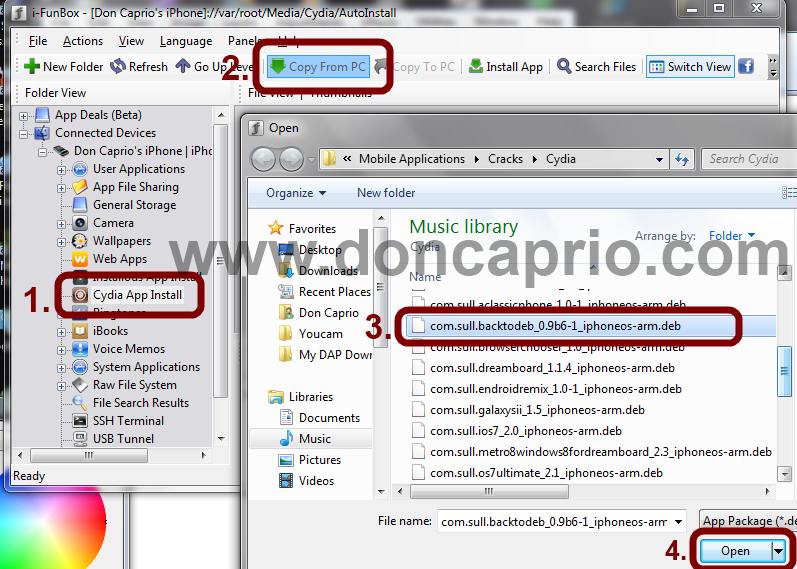
- Select Copy from PC and choose the .deb file I attached
- Detach your phone from the coputer
- Turn off your phone and turn it back on. You should have a new app on your springboard named BackToDeb
How to use BackToDeb
- Run BackToDeb and click Continua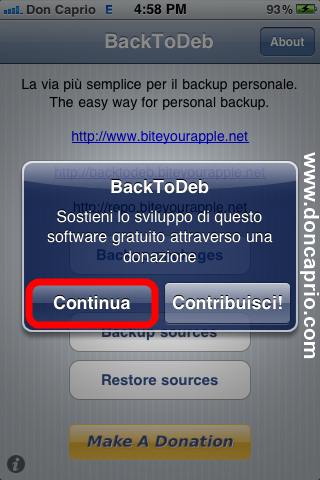

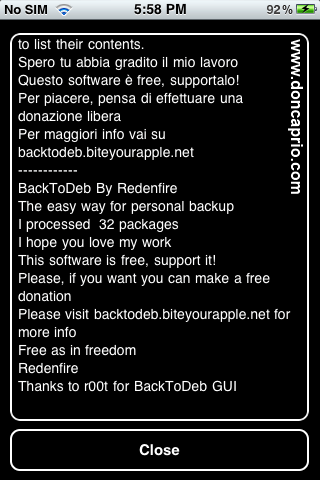
All your installed Cydia packages are now backed up on your device.
Copying the .deb Files to your Computer
The files are located in //var/mobile/BackToBed in your iDevice file system. To copy to your PC, follow these steps:- Connect your phone to your computer and run iFunbox.
- Select Raw File System on iFunbox and navigate to this location: var > mobile > BackToBed.
- You should now see all your backed up Cydia packages.
- Press CTRL + A on your keyboard to select all the files.
- Click Copy To PC, select your desired location and save the .deb files.
Restoring your .deb packages after a fresh firmware install & jailbreak
In the even that you restored you firmware and had to jailbreak your phone again, restoring your tweaks and apps without downloading them all over again from Cydia is very easy since you have them on your PC already.- Run iFUnbox
- Select Cydia App Install
- Click Copy from PC and locate the .deb files
- Select them all, detach your phone and restart. I suggest your restart your device twice.
How to Install .deb File [iPhone/iPod/iPad Cydia Tutorial]
1st Method: Install with iOS Safari Browser + iFile
Requirements: iPhone/iPod/iPad Safari Browser + iFile- Download .deb file with iPhone/iPod/iPad Safari browser
- Choose >> Open in “iFile”
- Once iFile opens >> Select Installer
- Respring
- YOU ARE DONE
2nd Method: Install with SSH Client + iFile
Requirements: SSH Client (iFunbox for Windows/Cyberduck for MacOS) + iFile- Download iFunbox >> (www.i-funbox.com) Windows , or Cyberduck for MacOS
- Download desired (.deb) file to your desktop
- Run iFunbox and connect your iOS (iPhone, iPod or iPad)
- iFunBox will show your device contents, Now navigate to any folder for example: var/mobile/Documents
- Move (.deb) file from your desktop to var/mobile/Documents
- Run iFile from your iOS, and navigate to the same folder i.e. var/mobile/Documents
- Click on (.deb) file and select install
- YOU ARE DONE
3rd Method: AutoInstallation Folder
Requirements: SSH Client (iFunbox for Windows/Cyberduck for MacOS)- Download iFunbox >> (www.i-funbox.com) Windows , or Cyberduck for MacOS
- Download desired (.deb) file to your desktop
- Run iFunbox and connect your iOS (iPhone, iPod or iPad)
- iFunBox will show your device contents, Now navigate to var/root/Media/
- Create the folder Cydia/AutoInstall (if not already created)
- Move (.deb) file from your desktop to var/root/Media/Cydia/AutoInstall
- Reboot your iOS
- YOU ARE DONE
4th Method: Install with Mobile Terminal
Requirements: Mobile Terminal + OpenSSH“Steps 2 and 3 are only if you have never installed a .deb file with this method”
- Download the .deb file you want (example : LockInfo)
- Start Cydia, go to “Search”, type “Mobile Terminal” and install it
- Repeat step 2 for “OpenSSH”
- Start “MobileTerminal”
- Type the following commands , then reboot:
Thursday, February 28, 2013
How to Install .deb File on iDevices (Cydia ထဲက .Deb File ေတြကို ဘယ္လိုသြင္းၾကမလဲ)
နည္းလမ္း (၁): AutoInstallation
- Windows/Mac အတြက္ iFunbox ကို Down ပါ (iFunbox Down ရန္),
- မိမိသြင္းလိုတဲ့ (.deb) file ေတြကို desktop ေပၚကို Down လိုက္ပါ
- iFunbox ကို Run ျပီး iDevice (iPhone, iPod or iPad) ကို ခ်ိတ္လိုက္ပါ
- iFunBox က မိမိ device ထဲက contents ေတြကိုျပပါလိမ့္မယ္၊ var/root/Media/ ဆိုတဲ့ လမ္းေၾကာင္းကိုေရြးလိုက္ပါ။
- Cydia/AutoInstall ဆိုတဲ့ folder ကိုေဆာက္လိုက္ပါ၊ ဒီလိုျဖစ္သြားပါလိမ့္မယ္ var/root/Media/Cydia/AutoInstall (အစထည္းကမရွိမွာသာ Folder ေဆာက္ရန္ျဖစ္ပါတယ္)
- Desktop ေပၚမွာ Down ထားတဲ့ (.deb) file ကို var/root/Media/Cydia/AutoInstall ဆိုတဲ့ Folder ထဲကိုေရႊ႕လိုက္ပါ
- iDevice ကို Reboot လုပ္လိုက္ပါ။
- YOU ARE DONE
နည္းလမ္း (၂) : iFile မွတဆင့္သြင္းနည္း
လိုအပ္ေသာ Software : iFile ( Insanelyi or HackYouriPhone repo ေတြကေန Down နိုင္ပါတယ္)- Windows/Mac အတြက္ iFunbox ကို Down ပါ (iFunbox Down ရန္),
- မိမိသြင္းလိုတဲ့ (.deb) file ေတြကို desktop ေပၚကို Down လိုက္ပါ
- iFunbox ကို Run ျပီး iDevice (iPhone, iPod or iPad) ကို ခ်ိတ္လိုက္ပါ
- iFunBox က မိမိ device ထဲက contents ေတြကိုျပပါလိမ့္မယ္၊ ၾကိဳက္တဲ့ လမ္းေၾကာင္းကတဆင့္ Folder တစ္ခုကိုေရြးလိုက္ပါ။ ဥပမာ: var/mobile/Documents
- Desktop ေပၚမွာ Down ထားတဲ့ (.deb) file ကို var/mobile/Documents ဆိုတဲ့ Folder ထဲကိုေရႊ႕လိုက္ပါ
- iDevice ေပၚကေန iFile ကို Run လိုက္ပါ ၊ ေစာေစာက Folder ကို ရွာျပီးဖြင့္လိုက္ပါ။ ဥပမာ : var/mobile/Documents
- (.deb) file ကိုေရြးျပီး and install ကို Select လုပ္ပါ။
- YOU ARE DONE
>> Install OpenSSH from Cydia, reboot, အစက ျပန္လုပ္ၾကည့္ပါ>> ဒီလိုပဲထပ္ျဖစ္ေနရင္>>Cydia ထဲက afc2add ကို Install ျပီး reboot လိုက္ပါ။
နည္းလမ္း (၃): Mobile Terminal နဲ႕သြင္းနည္း
လိုအပ္ေသာ Software: Mobile Terminal ႏွင့္ OpenSSH (Cydia ကေန သြင္းရမွာပါ)“Steps 2 and 3 ဟာ ဒီနည္းနဲ႔ သြင္းတဲ့ ပထမဆံုးတစ္ေခါက္မွာပဲလိုအပ္မွာျဖစ္ပါတယ္”
- မိမိသြင္းလိုတဲ့ (.deb) file ေတြကို desktop ေပၚကို Down လိုက္ပါ (ဥပမာ LockInfo)
- Cydia ကိုဖြင့္ပါ, “Search” ကိုသြားပါ, “Mobile Terminal” ဆိုျပီးရွာပါ၊ေတြ႔ရင္ install လုပ္ပါ။
- Cydia ကိုဖြင့္ပါ, “Search” ကိုသြားပါ, “OpenSSH” ဆိုျပီးရွာပါ၊ေတြ႔ရင္ install လုပ္ပါ။
- “MobileTerminal” ကိုဖြင့္လိုက္ပါ
- ေအာက္က commands ေတြကိုရိုက္ျပီး reboot လုပ္ပါ။:
alpine (return ကိုႏွိပ္ပါ )
dpkg -i nameofpackage.deb ( return ကိုႏွိပ္ပါ ), မ်ဥ္းသားထားတဲ့ nameofpackage ဆိုတဲ့ေနရာကို မိမိလိုခ်င္ရာေျပာင္းလိုက္ပါ ဥပမာ : LockInfo
မူရင္ လင့္က ဒီမွာ ပါ။
Subscribe to:
Posts (Atom)